
PUNCH LISTS INSIDE THE REAL SITE
Construction Punch List Software Built Around the Real Site
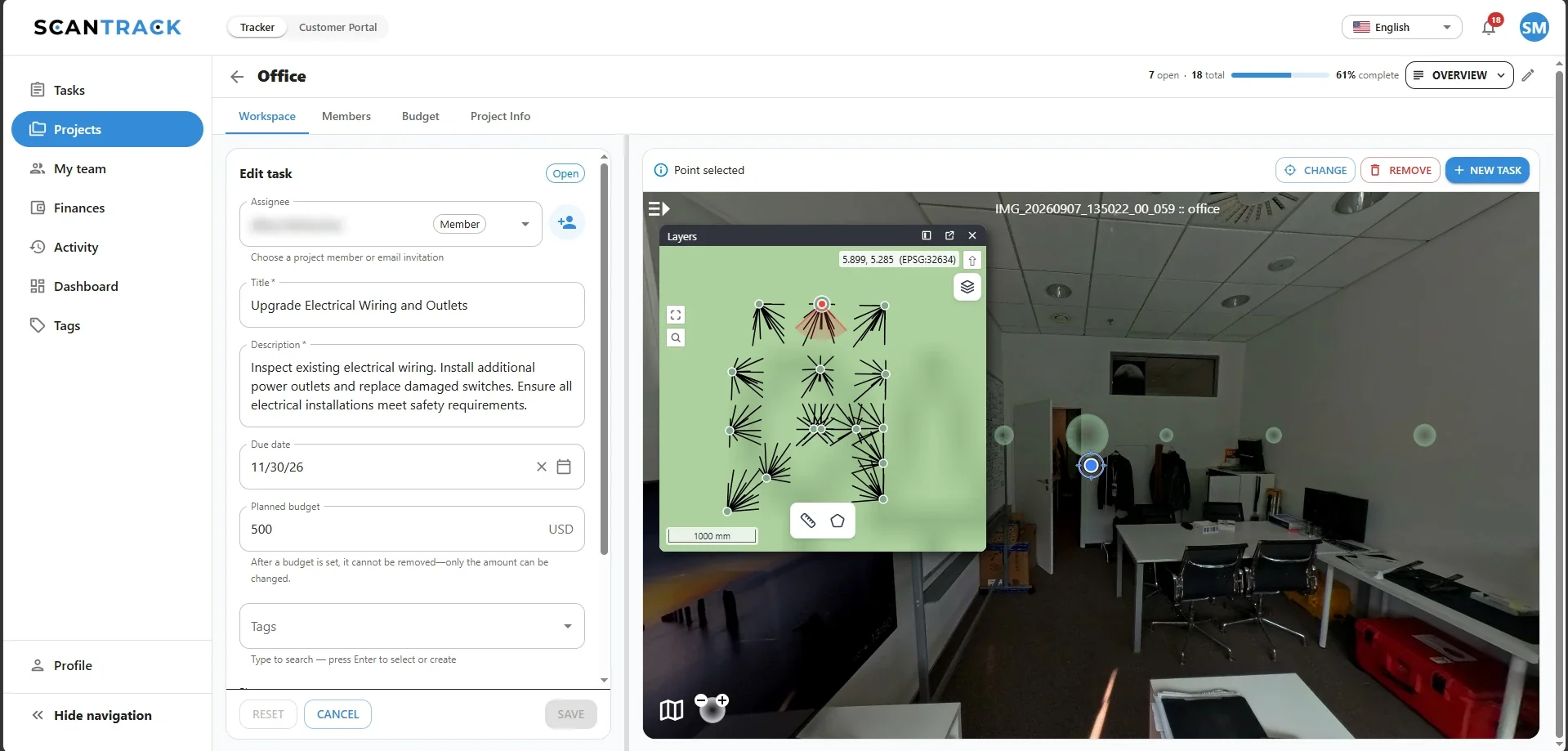
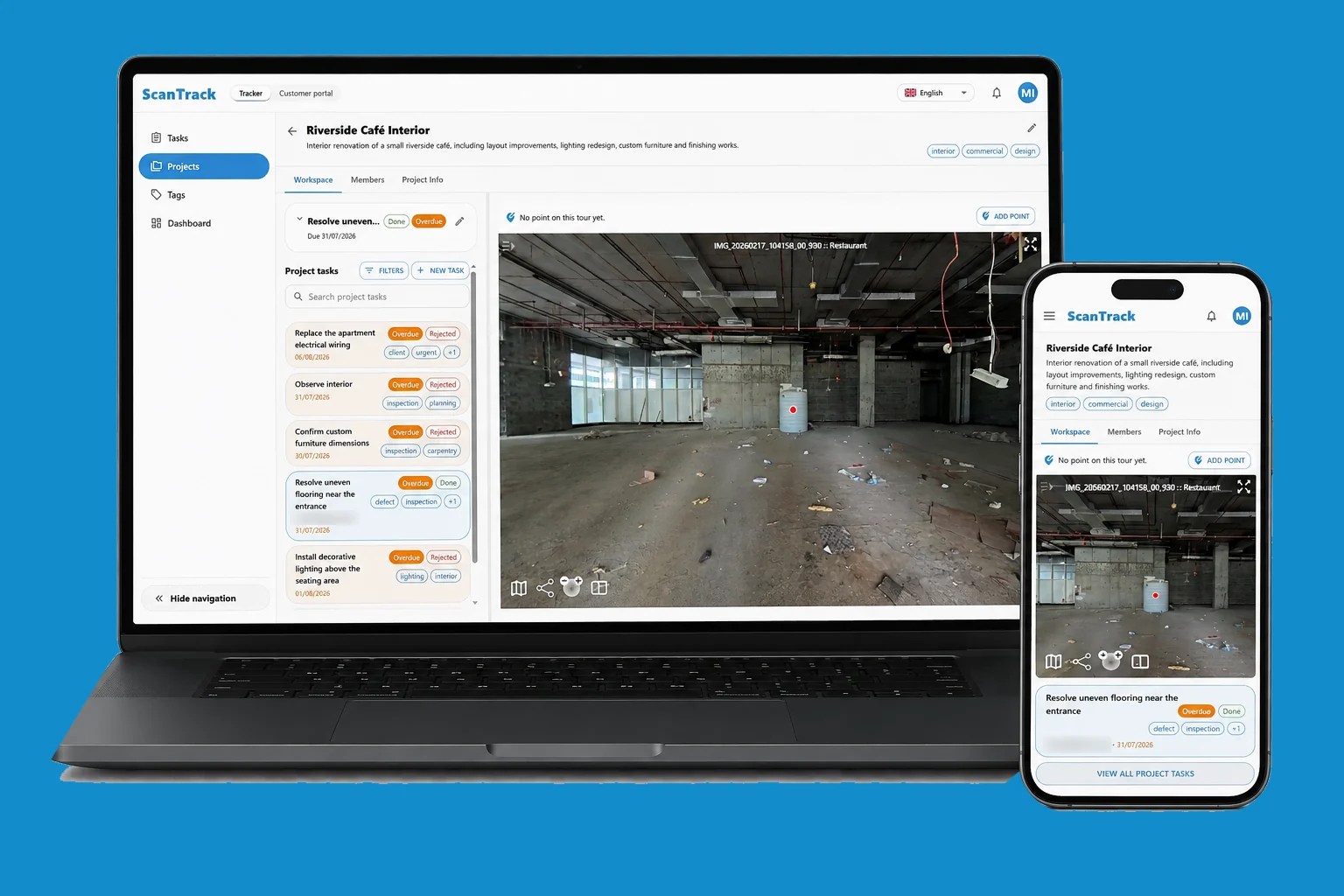
Create every punch item exactly where the work needs attention. ScanTrack places punch list items at precise points inside interactive 3D site tours, so trades see the location, the instruction and the expected result in one view.
No more guessing which wall, which outlet or which corner of the third floor a note refers to. Open the item, see the spot, fix it, send photo proof and close it.
- Punch items pinned inside the 3D tour
- Assignee, due date and status on every item
- Photo proof before an item is closed
- Unlimited project users
PUNCH LIST BASICS
What Is a Construction Punch List?
A construction punch list is the list of work that still has to be completed or corrected before a project, a floor or a unit is handed over. Typical punch items include paint touch-ups, damaged finishes, missing trims, misaligned outlets and switches, doors that do not close properly, unfinished sealant and fixtures that are not yet installed.
The list is usually built during a walkthrough with the general contractor, the superintendent, the architect or the owner's representative. Every item then has to reach the right trade, be fixed, be checked and be signed off. That is where most delays come from: vague descriptions, scattered photos and long message threads about where exactly the problem is.
Construction punch list software turns this list into a shared, trackable workflow. ScanTrack adds the one thing a spreadsheet or a pin on a 2D drawing cannot give: the real place, visible in 3D.
Why a Pin on a Drawing Is Often Not Enough
Most punch list apps let you drop a pin on a floor plan. That shows the room, but not the detail. On a busy floor, “outlet on the east wall, room 304” can still mean three different outlets.
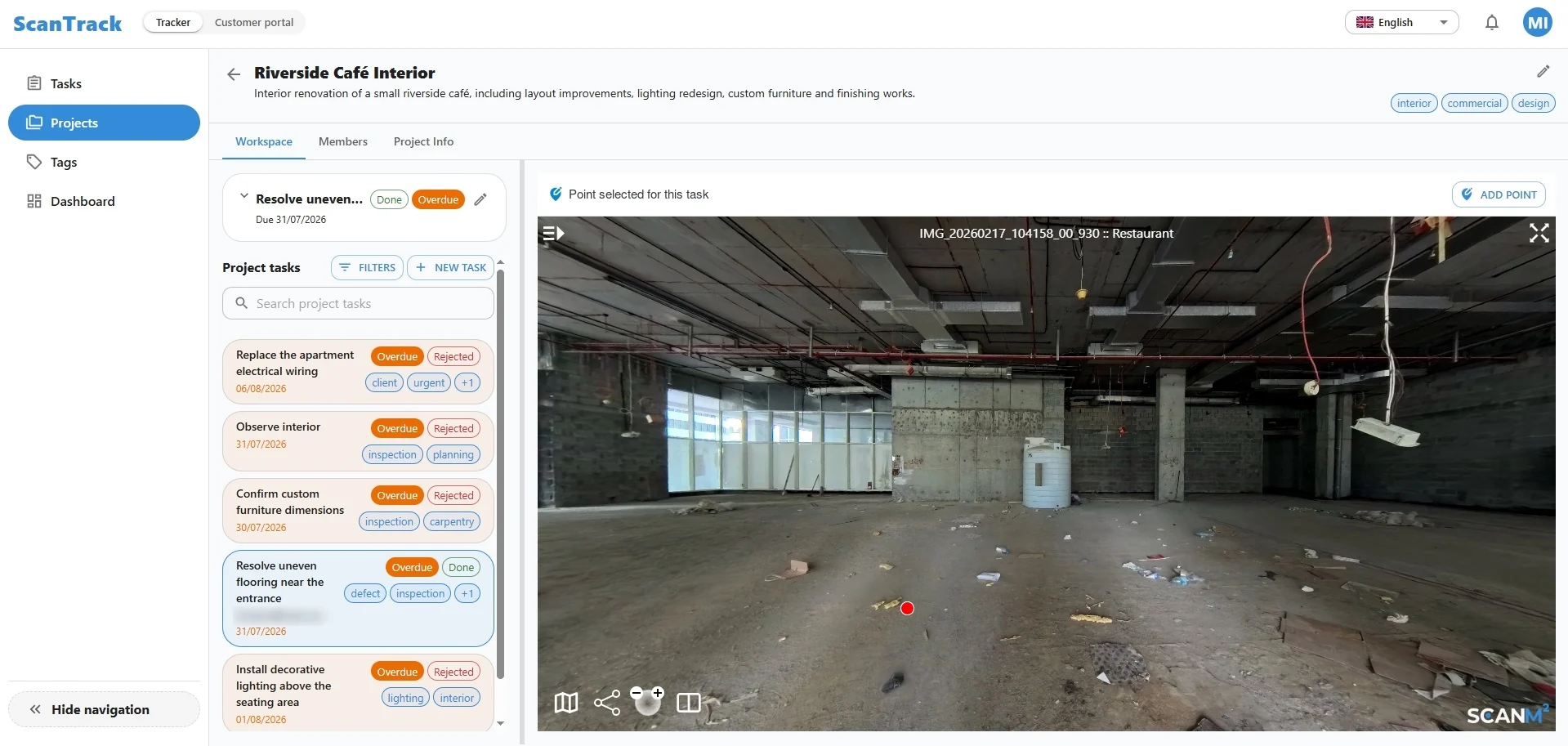
In ScanTrack the punch item sits at a point inside the 360° / 3D tour of the site:
The trade sees the exact element – the outlet, the ceiling panel or the section of skirting board – together with what surrounds it.
The reviewer does not have to rewrite the location in words. The point in the tour is the location.
A floor-plan minimap shows where the scan positions are, so anyone can jump to the right room in a few clicks.
The office and the field look at the same place instead of comparing photos and sketches.
WORKFLOW
How the Punch List Workflow Works in ScanTrack
-
01
Upload or open the 3D tour
Use a tour of your site, or a scan captured by the ScanM2 team.
-
02
Walk the site virtually or on site
Move through the tour and stop where something is wrong or unfinished.
-
03
Place the punch item
Click the spot, add a title and a short description, choose the assignee, set the due date and add tags such as trade, floor or priority.
-
04
The trade fixes the item
The assignee opens the task, sees the location in 3D and knows what to do without a phone call.
-
05
Photo proof is submitted
After the correction, the responsible person attaches photos or files to the same task.
-
06
Approve or reject with a reason
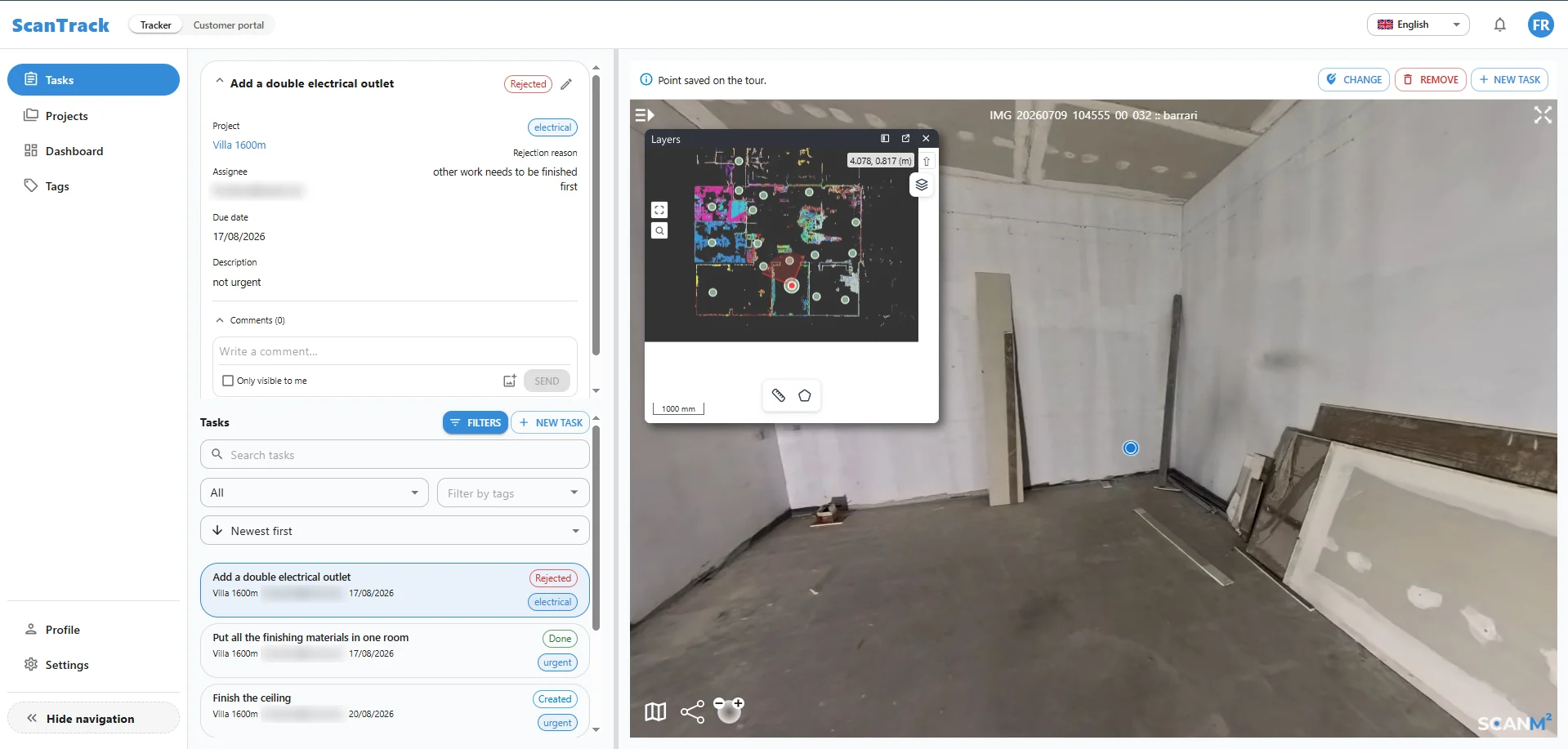
The reviewer accepts the work and closes the item, or rejects it with a comment that explains what still needs to change. The decision stays in the task history.
The result is a punch list where every item has a place, an owner, a deadline and a visible outcome.
Rejected Items Do Not Disappear
On many projects the slowest part of closeout is the second and third round: items that were “done” but not done right. ScanTrack keeps these items visible.
When the reviewer rejects a submitted result, the task gets the Rejected status together with the reason, for example “the outlet is still 5 cm off the marked position”. The trade sees the comment, the location and the previous photos in one place and can fix the item without another walkthrough just to find it.
Track the Whole Punch List at a Glance
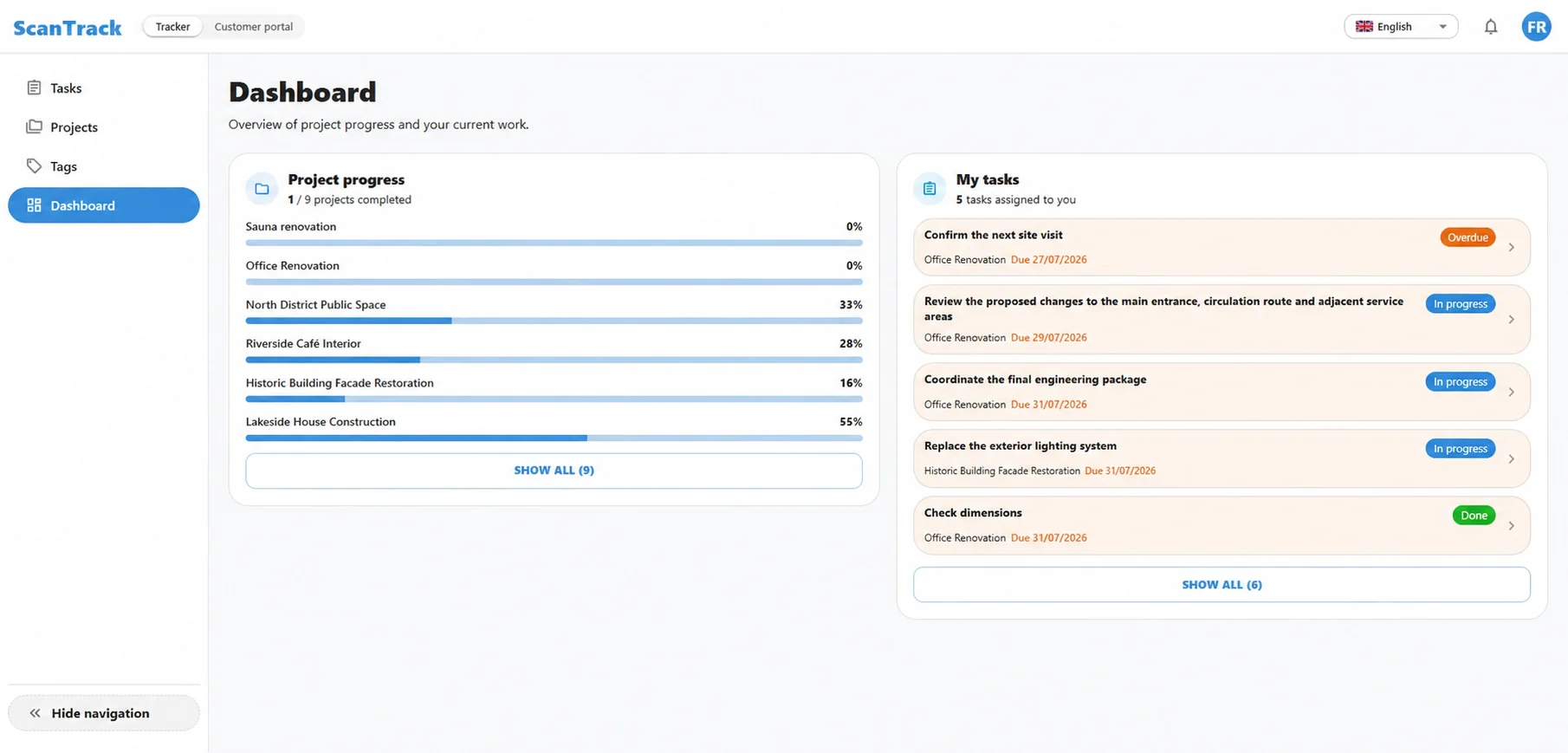
A punch list is only useful when you can see what is still open. ScanTrack gives project managers and superintendents a clear overview:
Statuses
Open, in progress, done, overdue and rejected.
Dashboard
Progress per project and the tasks assigned to you.
Filters and tags
View items by trade, area, floor or priority.
Planned budget
On a task when a correction has a cost you want to follow.
Task history
Comments, files and status changes.
This makes it easier to answer the questions that come up before handover: what is left, who is late and which items are waiting for review.
Construction Task Management Beyond Closeout
The same workflow works long before the final walkthrough. Teams use ScanTrack as construction task management software during the whole project:
QA/QC during construction
Record issues while walls and ceilings are still open, when corrections are cheaper.
Installation and coordination tasks
Mark where equipment, outlets or openings must be added or moved.
Renovation and fit-out
Manage changes in occupied buildings where the existing conditions matter.
Facility handover and maintenance
Keep open items attached to the building record after the project ends.
Because each task is tied to a place, the history of the site builds up naturally: what was found, where, who fixed it and how it looked when it was accepted.
WHO IT IS FOR
Who Uses ScanTrack for Punch Lists
General contractors and construction managers
Coordinate punch items across trades and keep closeout moving.
Superintendents and site supervisors
Create items quickly during the walk and follow up without repeated explanations.
Subcontractors and trade teams
See exactly where the work is, submit photo proof and get clear feedback.
Architects and owner's representatives
Review open items and completed work remotely, with the location in view.
Property and facility managers
Track snag lists in apartments, offices and commercial units after handover.
TERMS
Punch List, Snag List and Checklist: What Is the Difference?
| Term | What it means | When it is used |
|---|---|---|
| Punch list | List of incomplete or incorrect work that must be fixed before handover | Near substantial completion and closeout (mainly US) |
| Snag list | The same idea under another name | UK, Ireland, Australia and the Middle East |
| Checklist | Planned list of things to check, prepared before the inspection | Any inspection or QA/QC step |
A checklist tells you what to inspect. A punch list records what failed and has to be fixed. In ScanTrack, both end up as location-based tasks that can be assigned, tracked and closed.
Paper, Spreadsheet or Punch List App?
Paper lists and spreadsheets are easy to start, but hard to keep current. Photos live in phones, comments live in messengers and nobody is sure which version is final. A punch list app keeps every item in one shared place with its status, owner and history.
ScanTrack goes one step further: the punch list is not just a table with pins on a drawing, it is connected to the real site in 3D. Distributed teams, owners who are not on site and trades who arrive weeks later all see the same location.
ScanTrack supports the documentation and coordination of punch items. It does not detect defects automatically and does not replace the final inspection by qualified project participants. A tour shows the site at the time it was captured.
FAQ
Frequently Asked Questions
What is construction punch list software?
It is software that helps teams record incomplete or defective work, assign it to the responsible trade, track the status and confirm the correction before closeout. ScanTrack links each punch item to a point inside an interactive 3D site tour.
How is ScanTrack different from a regular punch list app?
Most apps place items on a 2D drawing. In ScanTrack the item sits inside the 3D tour itself, so the trade sees the exact element and its surroundings, not just the room.
Who creates and manages the punch list?
Usually the general contractor or the superintendent, together with the architect or the owner's representative. In ScanTrack any invited project member with the right permissions can create items, and the reviewer approves or rejects the results.
Can subcontractors use ScanTrack?
Yes. Project users are unlimited, so subcontractors and trade teams can be invited to see their tasks, submit photos and read the reviewer's comments.
Can I do a punch walk remotely?
Yes. Reviewers can move through the available 3D tour and check tasks and submitted photos from the office. Final acceptance of some items may still require an on-site check, because the tour shows the site at the time it was captured.
What happens when a fix is not accepted?
The reviewer rejects the task and writes the reason. The item gets the Rejected status and stays visible until the trade corrects it and submits new proof.
Do I need my own 3D tour?
You can upload your own tour during the free trial. If you do not have one, the ScanM2 team can scan the site for you.
Is there a free trial?
Yes, ScanTrack can be tested free for 14 days with your own tour and your project team. Commercial terms after the trial are agreed individually.

Close Out Punch Lists With the Real Site in View
Give every punch item a precise location, a responsible person and a clear path to sign-off. Try ScanTrack on your project and see how much faster closeout goes when nobody has to ask “where exactly?”.