QUALITY CONTROL INSIDE THE REAL SITE
Construction Quality Control Software That Shows Where the Problem Is
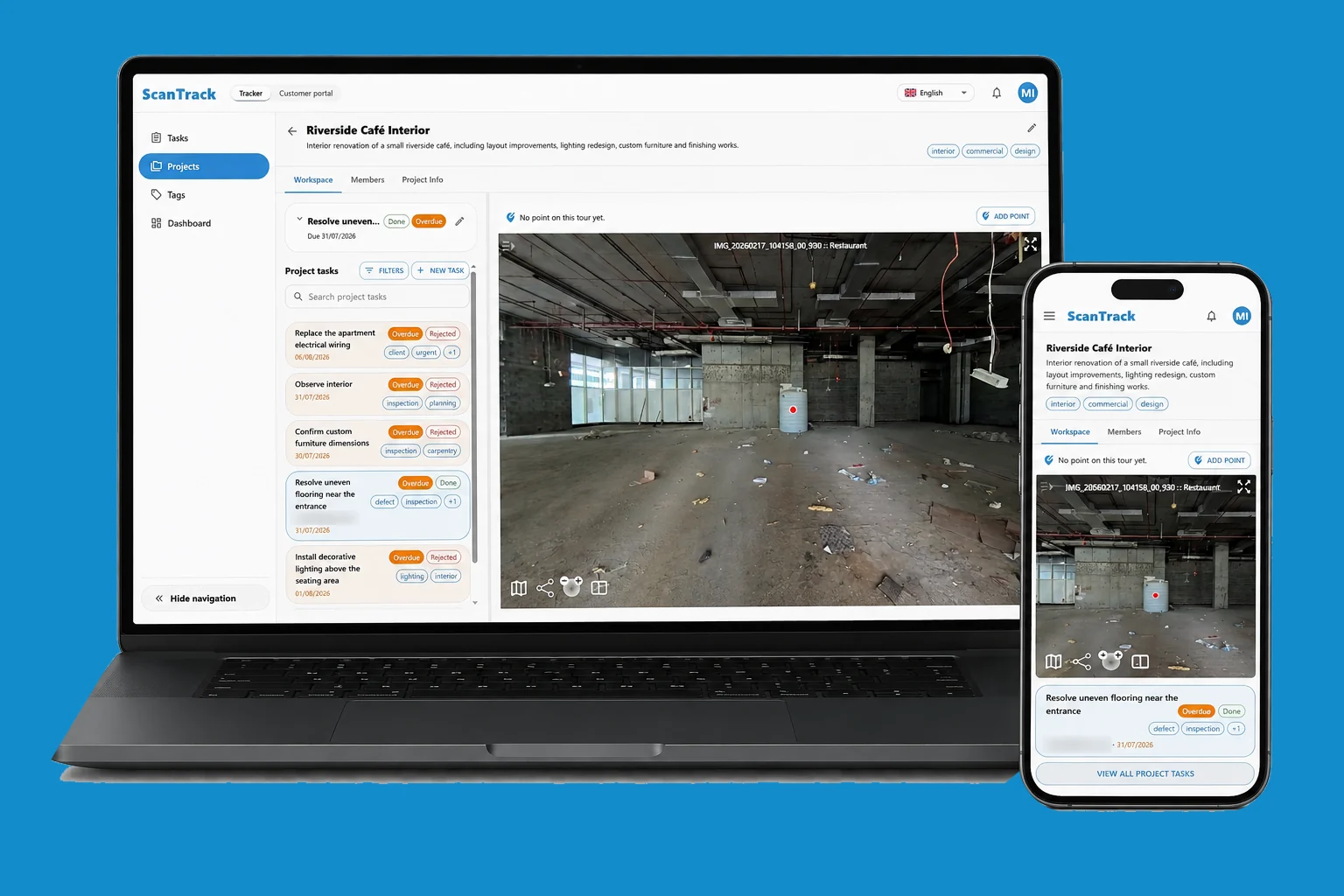
Catch quality issues while they are still cheap to fix. ScanTrack places every quality issue at its exact point inside an interactive 3D site tour, assigns it to the responsible trade and keeps it open until the fix is proven with photos and approved.
The reviewer does not have to describe the location in words, and the trade does not have to guess. Everyone sees the same spot, the same instruction and the same evidence.
- Quality issues pinned inside the 3D tour
- Photo evidence from the trade before an issue is closed
- Approve or reject with a written reason
- Unlimited project users, including subcontractors
QUALITY CONTROL BASICS
What Is Construction Quality Control Software?
Construction quality control (QC) is the work of checking that what is built matches the drawings, the specifications and the agreed standard of workmanship – and of making sure that anything that does not match is corrected. Construction quality control software gives this work a shared, trackable form: each issue has a location, a responsible person, a deadline, a status and a record of how it was resolved.
Without it, quality issues live in notebooks, photo galleries on personal phones and long message threads. Some get fixed twice, some never, and nobody can say for sure which ones were checked.
ScanTrack adds the piece that most QC tools are missing: the real site in 3D. A quality issue is not a pin on a drawing or a line in a table – it is a point inside the tour, next to the pipe, the opening or the wall it refers to.
QA VS QC
QA vs QC: Where ScanTrack Fits
| Quality assurance (QA) | Quality control (QC) | |
|---|---|---|
| Goal | Prevent problems through processes and standards | Find and correct problems in the work itself |
| When | Planning, method statements, training | During construction, at every phase |
| Typical output | Quality plan, procedures, approvals of methods | Issues, corrections, evidence, sign-off |
ScanTrack supports the QC side: recording issues where they are, routing them to the right trade, collecting proof of the correction and keeping the decision on record. Your QA documents and procedures stay where they are; ScanTrack helps make sure the work on site actually follows them.
Check Hidden Work Before It Is Covered
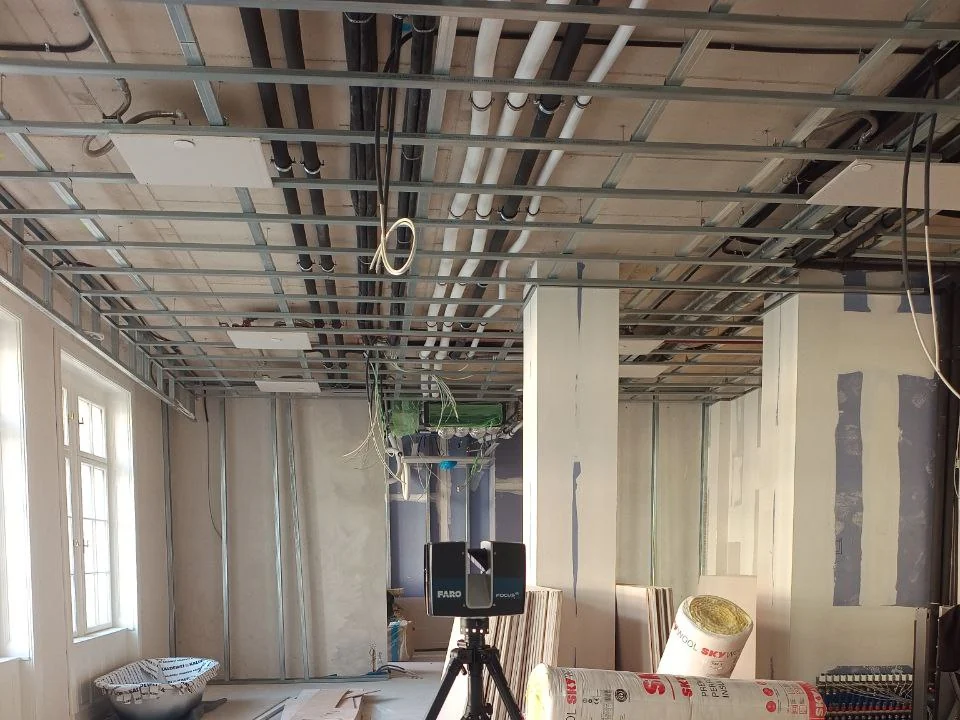
The most expensive quality problems are the ones found after a ceiling is closed, a wall is boarded or a slab is poured. At that point a small mistake turns into demolition and rework.
Teams use ScanTrack tasks as a check before the next phase starts:
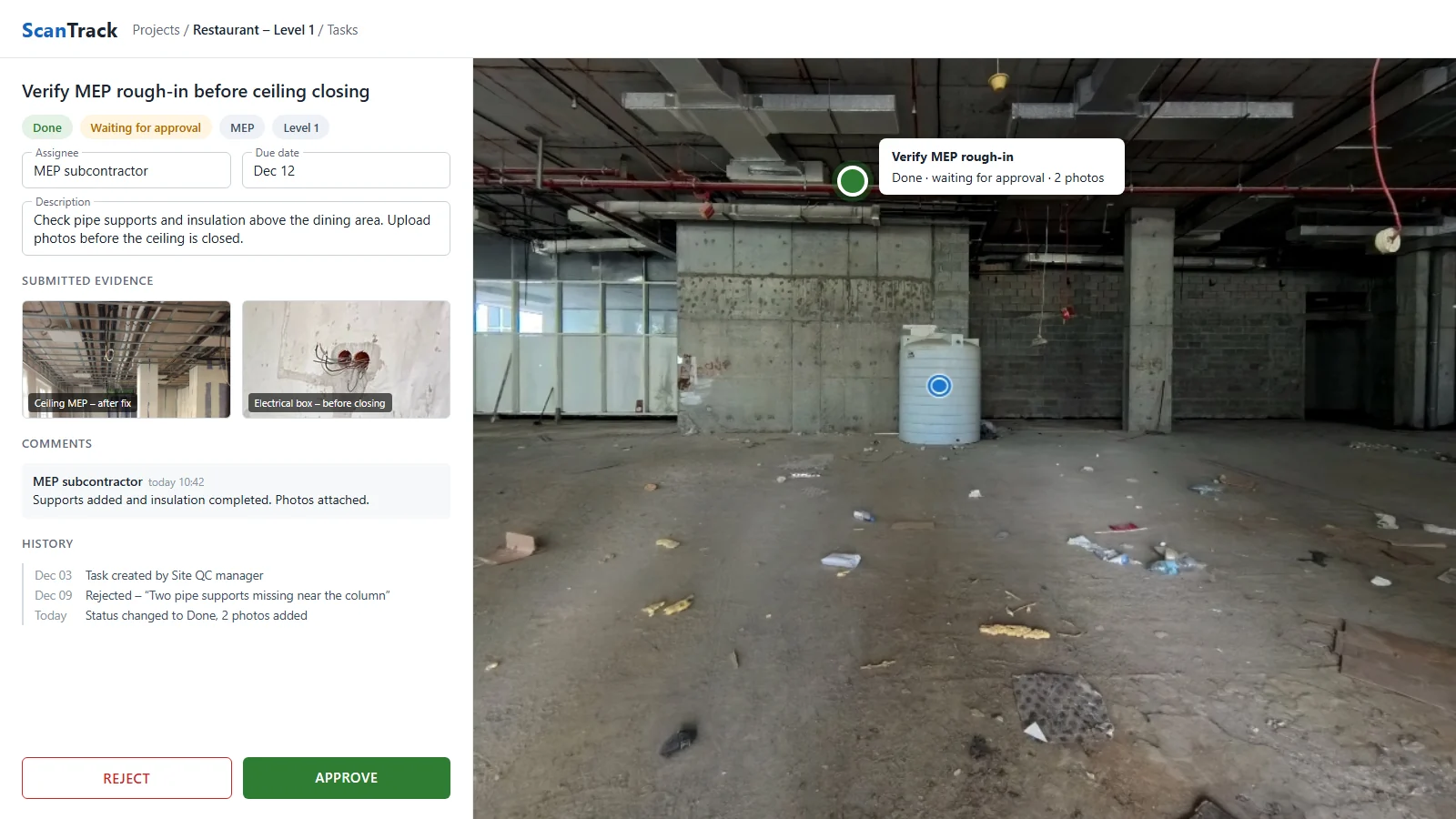
Create a task at the spot – for example "verify pipe supports above the dining area before ceiling closing".
Assign it to the trade with a due date tied to the closing date.
The trade uploads photos of the finished installation to the same task.
The reviewer approves – and the ceiling can be closed – or rejects with a reason if something is missing.
Because the task sits inside the 3D tour, the record shows not only what was checked but also exactly where. Months later, when someone asks what is behind that ceiling, the photos and the decision are still attached to the place.
Verify the Fix, Not Just the Report
"Fixed" in a message is not the same as fixed on site. In ScanTrack an issue is not closed because someone says it is done. The workflow is built around evidence:
The trade submits proof – photos or files attached to the task after the correction.
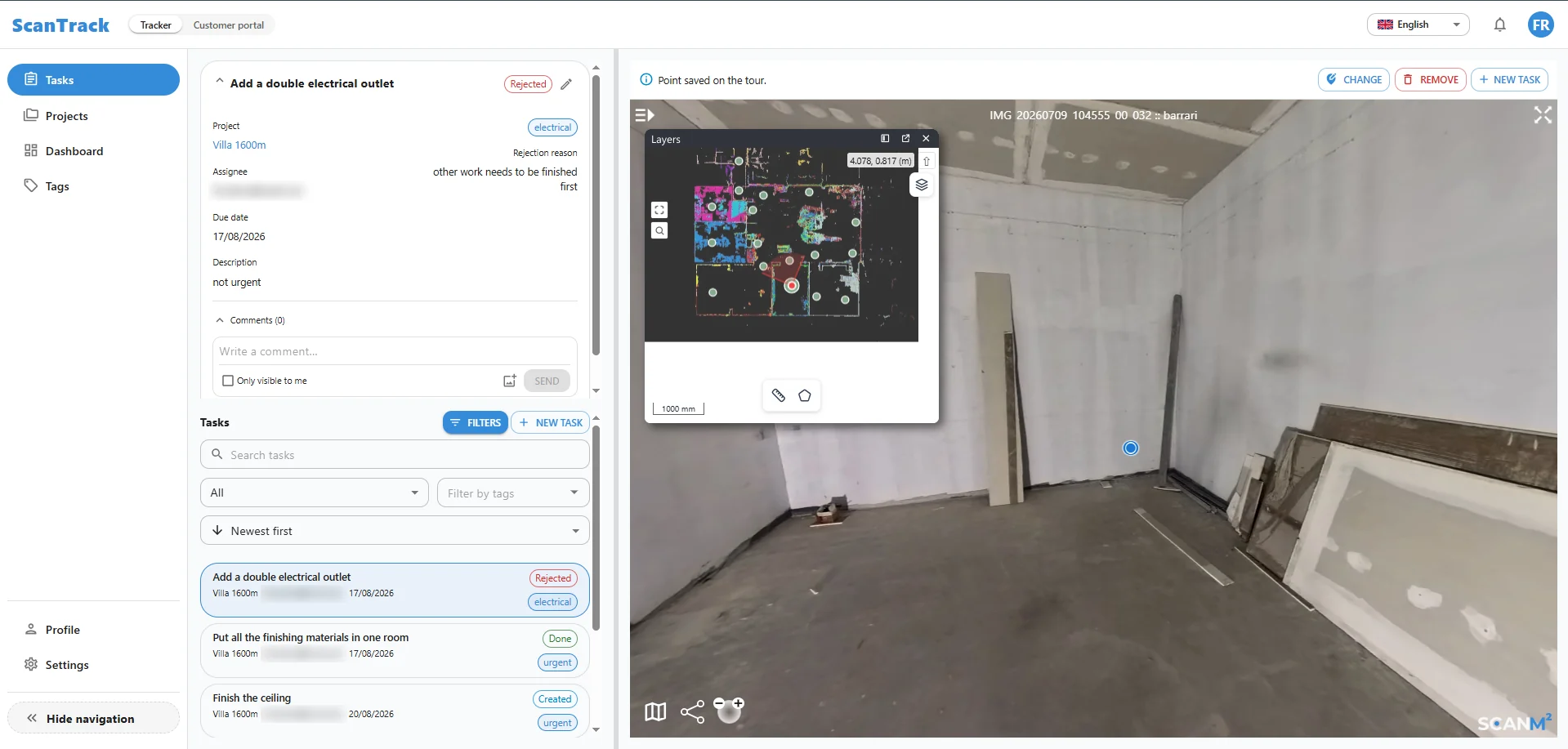
The reviewer approves and the task is closed, or rejects it with a comment that explains what is still wrong.
Rejected issues stay visible with the Rejected status and the reason, for example "two pipe supports still missing near the column".
Every step stays in the task history – comments, files and status changes.
This removes the most common source of repeated rework: corrections that were reported but never really checked.
Quality Control Through Every Phase
Quality issues appear at every stage of the project, not only at the end. ScanTrack tasks can follow the work phase by phase:
Structure and shell
Openings, embedded items, surface defects before the next trades start.
MEP rough-in
Routing, supports, insulation and clearances before ceilings and walls are closed.
Interior works
Drywall, finishes, doors, fixtures and installation positions.
Renovation and fit-out
Work in existing buildings, where the actual conditions often differ from old drawings.
Use tags for the phase, the trade, the floor or the priority, so each team sees its own issues and managers can filter the full picture.
See Quality Status at a Glance
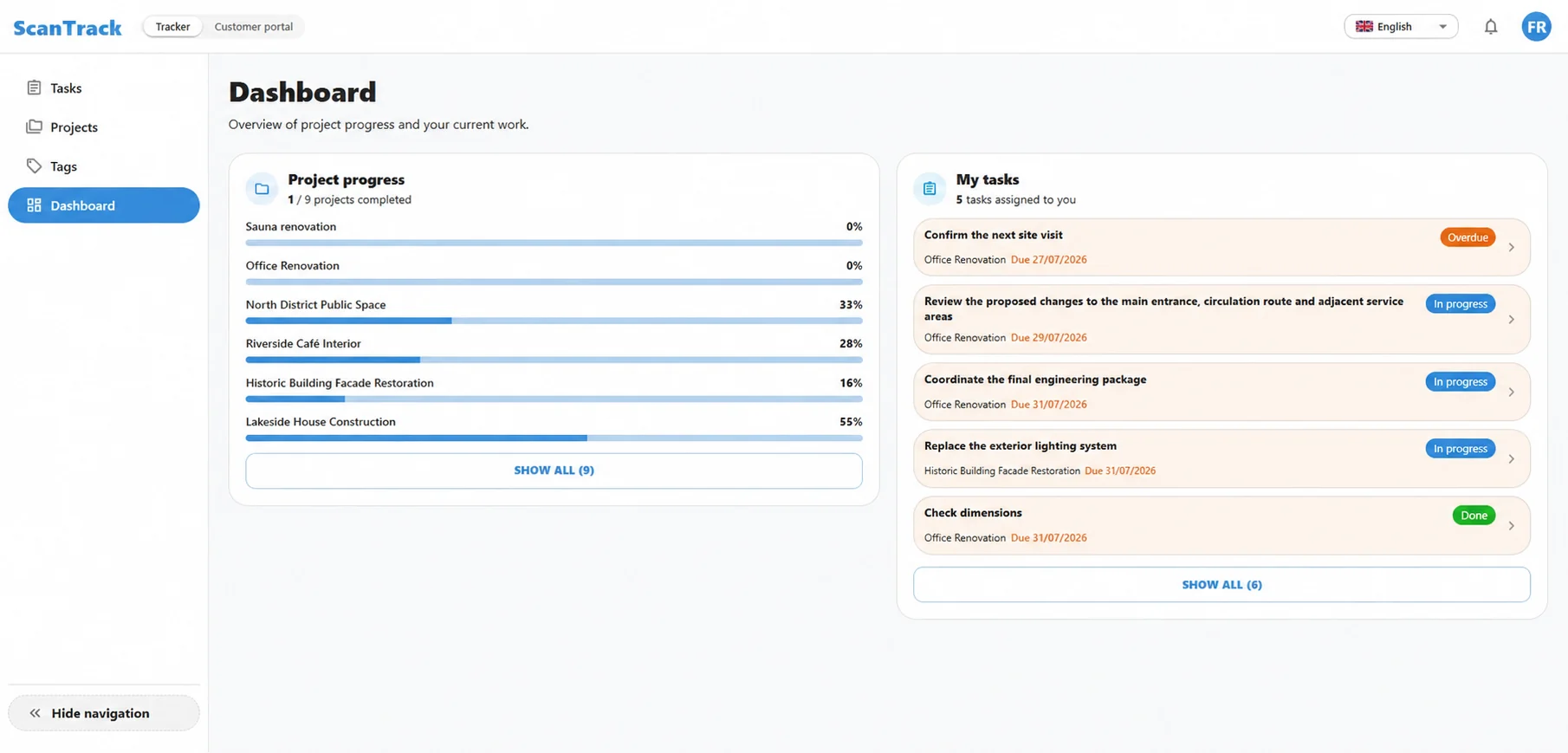
Quality control only works when you know what is still open. ScanTrack gives project managers and QC managers a clear overview:
Statuses: open, in progress, done, overdue and rejected.
Dashboard with progress per project and the tasks assigned to each person.
Overdue tasks that show where corrections are holding up the next phase.
Planned budget on a task when a correction has a cost you want to keep in view.
Floor-plan minimap to move between scan positions and find the area quickly.
Hold Every Trade Accountable – Without Per‑Seat Limits
Quality control depends on the people who actually do the work. If subcontractors cannot see their issues, the issues come back to the general contractor as phone calls and site meetings.
ScanTrack has unlimited project users, so you can invite every subcontractor and trade team without counting seats. Each trade sees the issues assigned to it, the exact location in the tour, the reviewer's comments and the result that is expected. Responsibility is clear: who received the task, when it was due and how it was closed.
Review Quality Remotely
Not every check requires a trip to the site. Project managers, architects, owner's representatives and engineers can open the 3D tour from the office, walk to the issue, look at the submitted photos and make a decision.
ScanTrack works in the browser on a laptop and on a phone, so the field team and the office use the same project. Some decisions may still require an on-site check, because a tour shows the site at the time it was captured – but many routine approvals no longer need a separate visit.
WHO IT IS FOR
Who Uses ScanTrack for Quality Control
General contractors and construction managers
Coordinate quality issues across all trades and keep rework under control.
QC managers and site engineers
Record issues during walks and check corrections against submitted evidence.
Subcontractors
See exactly what to correct and where, and send proof of the finished work.
Architects, engineers and owner's representatives
Review issues and approvals remotely.
Developers and facility owners
Keep a record of how the building was built and checked.
A Tool for Records, Not a Replacement for Inspection
ScanTrack supports the documentation and coordination of quality control. It does not detect defects automatically, and it does not replace inspections and acceptance by qualified project participants. A 3D tour shows the site at the time it was captured; new tours can be added as the work progresses.
FAQ
Frequently Asked Questions
What is construction quality control software?
It is software that helps teams record quality issues, assign corrections to the responsible trade, collect proof of the fix and keep a record of the decision. ScanTrack links each issue to a point inside an interactive 3D tour of the site.
What is the difference between QA and QC in construction?
Quality assurance is about preventing problems through plans, procedures and standards. Quality control is about checking the actual work and correcting what does not meet the requirements. ScanTrack supports the QC part of the process.
How does ScanTrack help reduce rework?
Issues can be recorded and checked early – for example before ceilings or walls are closed – when corrections are cheaper. Approval based on photo evidence also reduces corrections that were reported but not really done.
How do subcontractors submit proof of a fix?
The subcontractor opens the assigned task, attaches photos or files of the corrected work and marks it as done. The reviewer then approves or rejects the result.
What happens when a fix is rejected?
The reviewer writes the reason, the task gets the Rejected status and stays visible until the trade corrects the work and submits new evidence. The whole exchange stays in the task history.
Can quality issues be reviewed without going to the site?
Yes. Reviewers can move through the 3D tour, open the issue and check the submitted photos from the office. Some items may still require an on-site check.
How many users can I add?
Project users are unlimited, so subcontractors, consultants and the owner's team can all be invited. Commercial terms are agreed individually.
Do I need my own 3D tour?
You can upload your own tour during the 14-day free trial. If you do not have one, the ScanM2 team can scan your site.

Keep Quality Under Control Where the Work Happens
Give every quality issue a precise location, a responsible trade and a clear path from correction to approval. Try ScanTrack on your project and see how much easier quality control becomes when the evidence and the place are in one view.